Landing page
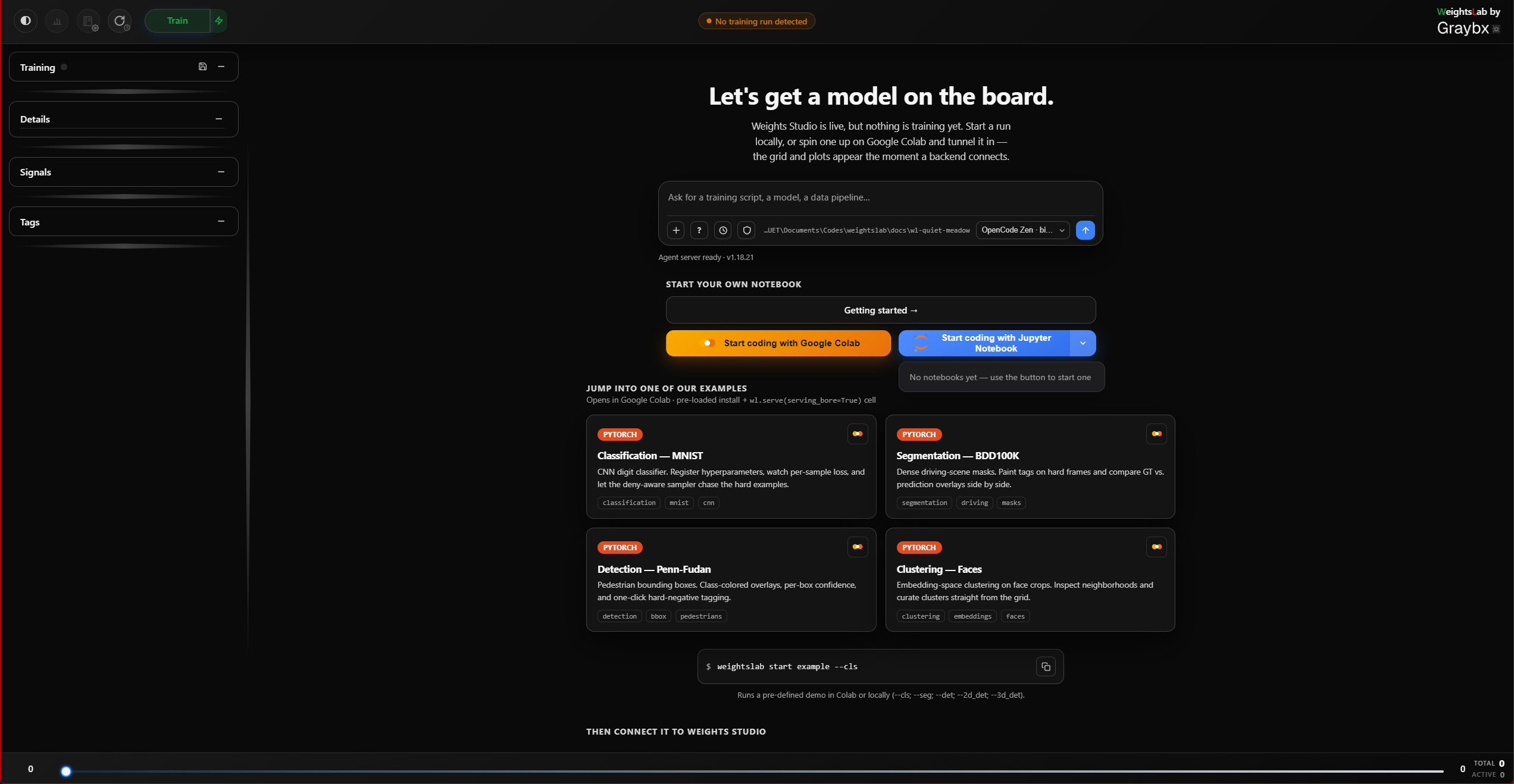
Until a training backend connects, the studio shows a landing page instead of the (empty) boards. It is a working surface in its own right, not a splash screen:
Agent chat, a full OpenCode chat that needs no backend at all. Ask it to scaffold a training script, wire
wl.serve()into an existing one, or explain a WeightsLab concept. It runs in your experiment directory, so it can read and write files there.Local Jupyter Notebook, starts a real, standalone
jupyter notebookserver and opens it. The button also lists notebooks already in this run’snotebooks/directory, so you can reopen one instead of creating a new one each time. Distinct from the in-app Integrated Notebooks, which requires a live backend.Colab quickstarts, per-topic notebooks that install WeightsLab from PyPI and call
wl.serve(serving_bore=True), so a Colab runtime can drive a studio on your machine.
The moment a backend connects, this page is replaced by the boards and the landing agent’s conversation is carried over into the Agent Window, you don’t lose the thread.
Report Generation
Warning
Unstable, in active development
Report generation from Weights Studio is experimental. Its output, the button’s behaviour, and the on-disk layout of generated reports are all still changing, and it can fail or produce an incomplete report on some experiments, particularly ones with unusual signal shapes, very long histories, or no authenticated agent provider.
Treat what it produces as a draft to read, not as an artifact to archive, publish, or cite. Don’t build anything on the file paths or the HTML structure yet. If you need a report you can rely on today, generate it from Python or the CLI (Experiment Reports), which exercise the same pipeline with arguments you control.
Please do report what breaks, that feedback is what stabilises it.
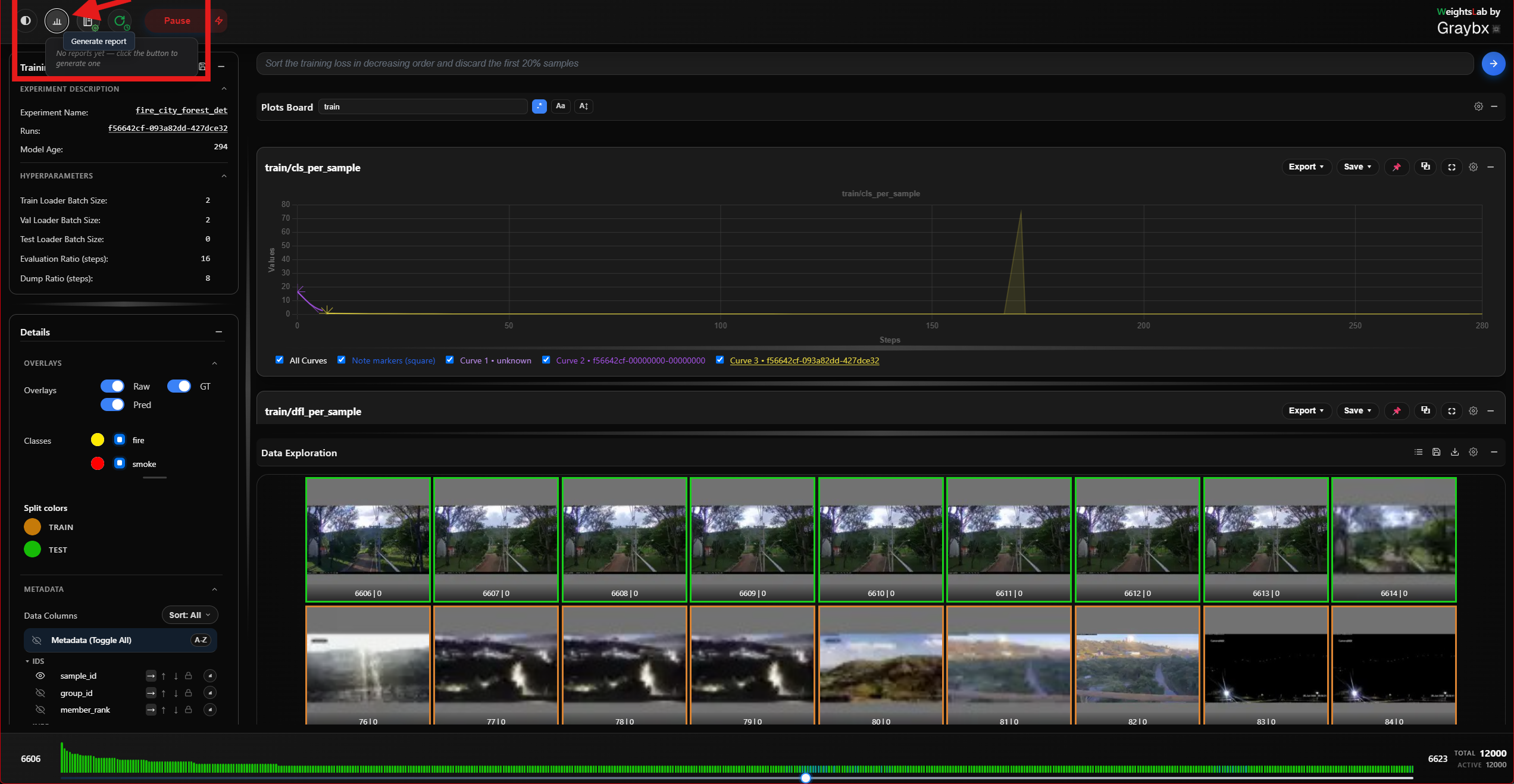
The report button sits in the header, immediately left of the notebook button, and is disabled until a backend connects.
Generating a report
Left-click it. This sends the same request the chat bar would, “Generate an experiment report”, through the normal agent pipeline. There is no dedicated RPC behind the button, which is why everything that applies to the agent applies here too: a provider must be authenticated, and generation takes as long as the model takes.
Progress appears in the status bar and the request shows up as an ongoing task
while it runs. The finished report is written under
<root_log_dir>/reports/.
Browsing existing reports
Right-click the button to list the reports already on disk for this
experiment, newest first, and open one. That listing is served over plain
same-origin HTTP by weightslab start, browsing and opening a report never
touches gRPC or the agent, so it keeps working even when generation doesn’t.
What lands in the report
The same artifact the other entry points produce: per-signal trajectory plots with an automatic health classification, bounded per-sample outliers, dataset statistics (sample counts, discard rate, tag distribution), and a written analysis grounded in those numbers, as one self-contained HTML file.
See Experiment Reports for the full description, and for the Python
(ai_report_generation()) and CLI (report) entry points.
Known rough edges
Generation is a single long agent turn: there is no partial output and no resume if it fails midway. Re-run it.
Signals with very short histories can be classified misleadingly, the health verdict assumes enough points to establish a trend.
The button offers no options. Use the Python or CLI entry points when you need to pick specific signals, an output path, distributions, or to skip the LLM analysis with
--no-agent.Reports are not cleaned up automatically;
<root_log_dir>/reports/grows until you prune it.
Integrated Notebooks
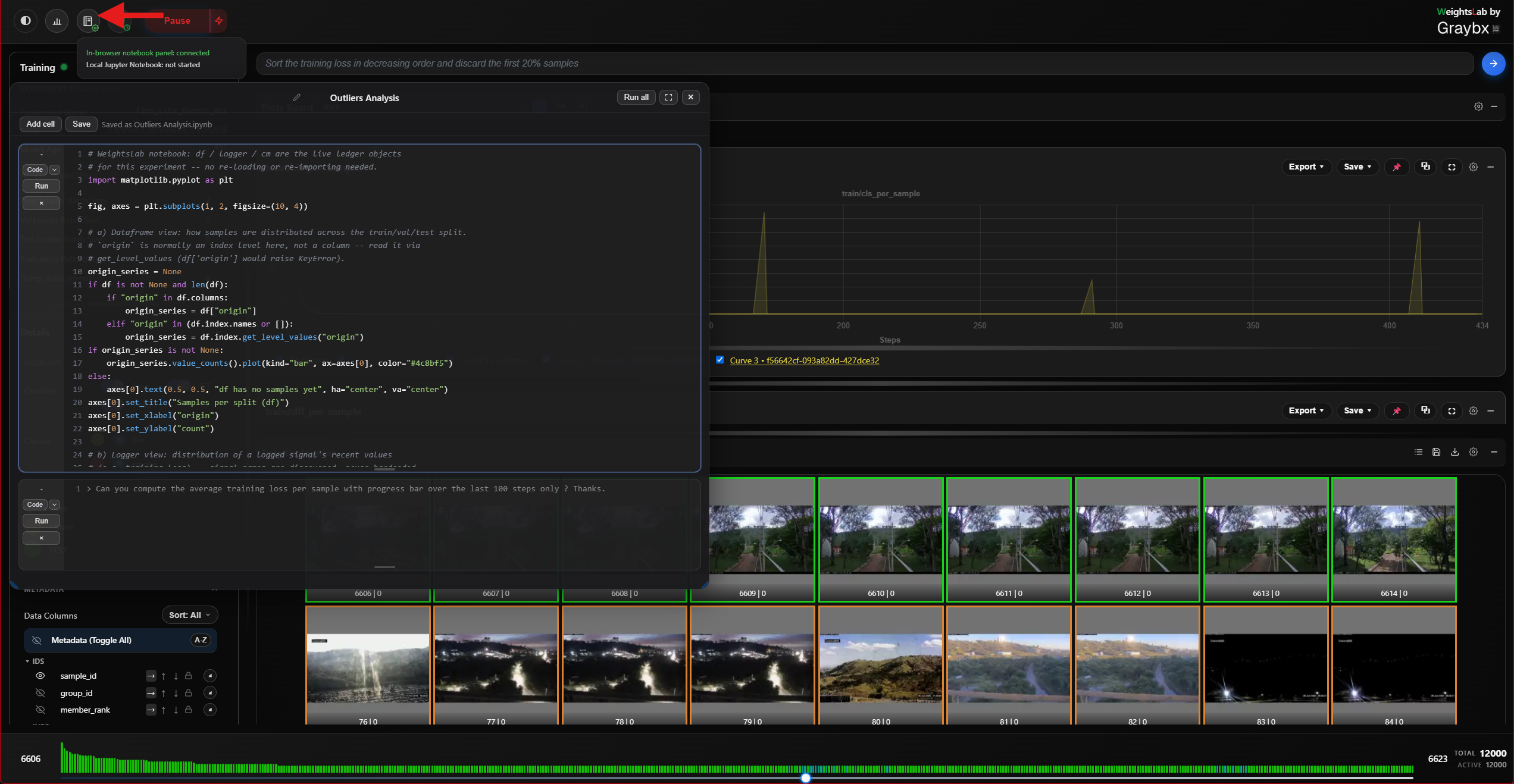
Weights Studio has a Jupyter-like notebook panel built into the UI itself,
opened via the notebook button just left of the logo. Unlike a standalone
Jupyter server, it runs in a shared in-process kernel inside the training
backend, every cell sees the exact same live objects your training script
does (the tracked dataframe df, the model, optimizers, checkpoints), with
no serialization or IPC in between.
Note
This is a different feature from the Local Jupyter Notebook button on
the “no backend connected” landing page above, which launches a real,
standalone jupyter notebook server process instead. Use the embedded
panel below to interact with an experiment that’s already training; use
the landing-page button to bootstrap a brand-new experiment from a
notebook before any backend exists at all.
How it works
The button is disabled until a backend connects, then becomes clickable.
The notebook document persists as
notebook.ipynbunder the experiment’sroot_log_dir. Reopening the panel, even after restarting the UI, as long as it points at the same experiment, reloads the same cells, their source, and their last-run outputs.Every cell runs against the training process’s ONE shared kernel: only one cell executes at a time. Clicking Run on a second cell while another is still running queues it rather than firing a second concurrent execution.
Running a code cell streams its output live as it’s produced: stdout/stderr (merged, in order), the value of the last expression, any
matplotlibfigures rendered inline as images, and a full traceback on error.A run can be interrupted mid-flight with the stop button next to the cell.
Running a code cell pauses training first (see below).
Running a cell pauses training
A cell runs in the training process, against the live model and data. If the training loop kept stepping while a cell ran, a cell that reads features, computes a t-SNE or inspects weights would see a model that changes underneath it. So executing a code cell pauses a running training first — the same pause as the header’s button, so the header shows it paused — and waits for the training step in flight to finish (up to 30 s) before the cell starts.
Training then stays paused: resuming is your call, with Play. The first cell that paused it says so in its output:
[WeightsLab] Training paused to run this cell -- press Play in the header to resume.
Code sent to the embedded kernel some other way (jupyter console
--existing) pauses training the same way. Generating code with a > cell
does not pause anything; running the generated code does.
To pause at a moment of your choosing from the training script instead — once
the run has converged, say — call wl.pause_training().
Which notebook opens: the one used last in this session, else the most
recently written .ipynb under root_log_dir, else a new
notebook.ipynb. A script can therefore ship a ready-made notebook by writing
it into root_log_dir before wl.serve() (see
examples/Usecases/wl-fashion-mnist-custom-projection).
Cell types
Cells can be code or markdown, toggle a cell’s type with the small button in its gutter:
Code cells execute against the shared kernel as described above.
Markdown cells render to formatted HTML (headings, bold/italic, lists, links, blockquotes, fenced code) when run. Double-click the rendered view (or run the cell again) to drop back into the raw source for editing.
Asking the agent for code
A cell whose source starts with > is not executed as Python, it’s sent
to the AI agent as a natural-language request for code:
> Compute the average training loss per sample over the last 100 steps,
> with a progress bar.
The agent’s proposed code replaces the cell’s contents; review it, then run
it like any other cell. Press Enter at the end of a > line to continue
the same prompt onto a new line; press Enter again on an empty > line to
drop the marker and finish the prompt. Any plain code left in the same cell
below the > lines is sent to the agent as extra context, not executed.
If a cell’s last run raised an error, an “AI” debug button appears on its
output, click it to send the code and traceback back to the agent and ask
for a fix, without retyping it as a > prompt yourself.
Example
A typical first cell against a live experiment:
df.head()
Followed by, in a second cell:
> Plot a histogram of the per-sample loss for the current epoch,
> highlighting samples tagged "hard_examples" in red.
Running that second cell doesn’t execute anything yet, it fills the cell
with the agent’s generated matplotlib code, which you then run to see
the plot rendered inline in the cell’s output.
Saving and running everything
Save: writes the current notebook (source + outputs) to
notebook.ipynb. This also happens automatically right after any cell finishes running (a code execution or a markdown render), so you rarely need to click it by hand.Run all: runs every cell top to bottom, strictly one at a time (never concurrently), skipping
>-prefixed agent-prompt cells; saves once more when the whole pass finishes.Rename: renaming picks a non-colliding filename automatically if one already exists.
Window controls
The notebook opens as a floating, draggable window: drag its header to move it, drag an edge or corner to resize, or use the maximize button to fill the viewport and restore it back to its previous size and position.
Turning it off
Set ENABLE_NOTEBOOK=0 before weightslab start to remove both the
button and the window entirely (dev server: VITE_ENABLE_NOTEBOOK, see
the Frontend runtime feature toggles table in Configuration reference).